 Alomar Apply
Step 3 · Check extension connection
Connect your Chrome browser to Alomar Apply.
Start here. Press the red connection button once so this browser can pair with your Alomar Apply account. The page will move from red to yellow to green while it checks the website, API, database, and Chrome extension.
Start here: click the button above. The rest of the page stays hidden until the extension confirms the connection.
Alomar API HealthChecking website → API → member database…
Browser connection steps
1Click connect
2Find Chrome extension
3Save secure device token
4Refresh Indeed or LinkedIn
1Click the connect button to start
Waiting to start. The next steps will appear after your browser connects.
Login neededLicense
0Confirmed applications
0Questions answered
ReadyChrome + iPhone alerts
If it does not connect:Make sure you are signed in, the latest ZIP is loaded in Chrome, and this page is open in the same Chrome profile.
Connection dashboard
Connected once. Ready for Indeed, LinkedIn, and Google Careers.
After this check passes, this Chrome profile uses the same member license on supported job sites. Reconnect here when the extension asks for a refresh, shows a version mismatch, or your dashboard looks blank.
Chrome profile pairing
One member account belongs to one Chrome profile.
Chrome stores the working copy needed for the extension. Your hosted account stores the safe profile summary, answers, progress, and separate Indeed, LinkedIn, and Google Careers memory. Provider API keys stay only in Chrome.
Press Check extension connection to begin.

Backend sync status
One account powers the website, Chrome extension, and iPhone alerts.
The hosted API identifies the signed-in member, issues a revocable token for this Chrome profile, saves the safe extension snapshot, and keeps each member’s data isolated by account ID. A different person should use a different Chrome profile and sign in with their own account.
Separate job-site memory
Indeed and LinkedIn use the same license, but separate run memory.
Indeed and LinkedIn share the connected member/license status from this Chrome profile. Each runner still saves its own state, last action, processed jobs, and recovery message so one platform does not overwrite the other.
Synced profile
Your Chrome profile and license.
This snapshot comes from the installed Chrome extension in this browser. If it is blank, open the extension, save your name/email, then click Reconnect this Chrome profile again.
Activity sync
Dashboard activity from this Chrome profile.
| Saved question | Answer |
|---|---|
| Reconnect to load saved answers. | |
Custom resume designs
Your private job proposal gallery.
Every generated job has a different image and PDF. The OpenAI key remains inside your Chrome profile and never appears on the website.
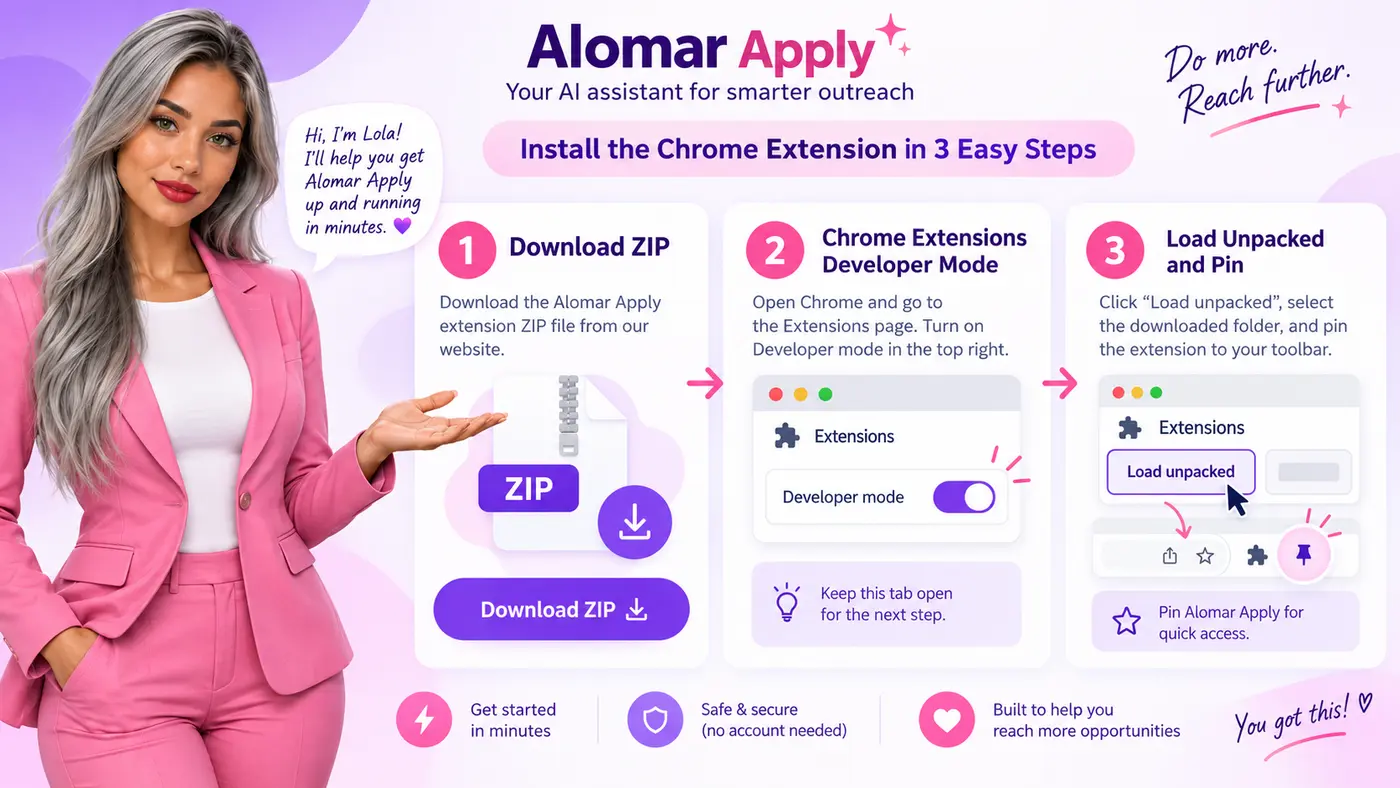
Download ZIP
Use the latest Alomar Apply ZIP from this website.
Load unpacked
Open chrome://extensions, enable Developer mode, then choose the unzipped folder.
Reload and refresh
Click Reload on the extension card, refresh Indeed, LinkedIn Jobs, or Google Careers, then start the matching workflow.
Next steps after connection
Your browser is connected. Now open a supported job site, refresh the page once, and look for Alomar Apply in Chrome.